HubSpot's Data Agent enriches, transforms, and fixes your CRM data automatically, working like a 24/7 data operations teammate instead of a one-time cleanup project. It powers three connected tools: Smart Properties (custom CRM properties filled in with AI-researched answers), Smart Actions (AI steps you add directly inside workflows), and Smart Columns (AI-generated columns on a dataset in Data Studio).
It runs on HubSpot Credits and is available across Marketing Hub, Sales Hub, Service Hub, Data Hub, and Content Hub Starter, Professional, or Enterprise, as well as Smart CRM or Revenue Hub Professional or Enterprise.
Table of Contents:
Check what our Senior HubSpot Consultant Anna Dominique has to say about it:
What is the Data Agent (and why use it)?
The Data Agent gives you AI across all of your HubSpot data, so instead of manually researching, formatting, or summarizing records, you set up a property, action, or column once and let it keep working on every record that matches.
.webp?width=1080&height=864&name=DataAgent_SUI_Hero%20(3).webp)
What it is
- Three connected capabilities: Smart Properties, Smart Actions inside workflows, and Smart Columns in Data Studio.
- Smart Properties are custom properties the agent fills in using web research, your company website, existing property data, or call transcripts, depending on what you choose.
- Smart Actions (Custom prompt, Research, and Fill Smart Property) run as steps inside a workflow, so AI-generated values can trigger branches or update records automatically.
- Smart Columns let you add an AI-researched column to a dataset directly in Data Studio.
Why use it
- Enriches and fixes CRM data continuously.
- Turns unstructured input, like call transcripts or free-text form fields, into structured properties you can filter, segment, and report on.
- Plugs directly into workflow branches and record updates, so qualification and prioritization can happen automatically instead of manually.
- Available on most HubSpot plans starting at Starter, so most teams already have a way to try it.
How do you set up the Data Agent?
Before you can create smart properties or use Data Agent actions, turn on the required permissions:
- In AI settings, toggle on: Give users access to generative AI tools and features, CRM data, Customer conversion data, and Files data.
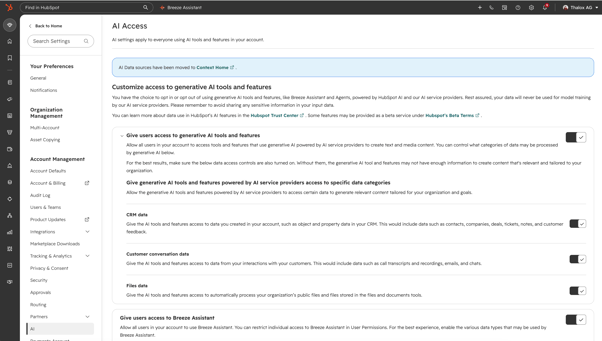
- In user settings, toggle Data Agent access on for each user who needs it. Super Admins already have this turned on by default.
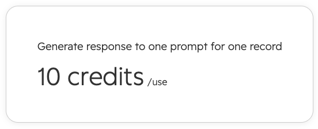
The Data Agent runs on HubSpot Credits, consumed each time it generates a response to one prompt for one record.
How do you create a smart property with the Data Agent?
- In your HubSpot account, click More, then navigate to Data Management > Data Agent.
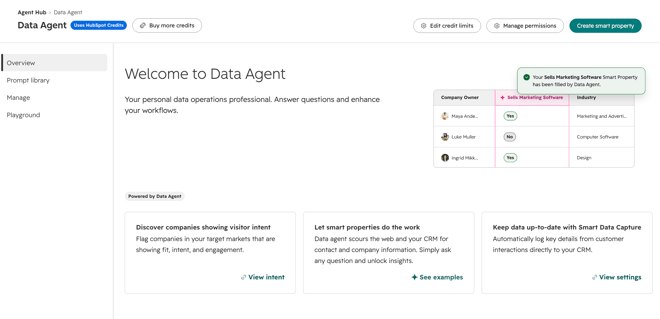
- Open the smart property creation panel: click Create smart property at the top right, pick a quick-action template, type a prompt under Smart properties, or click Create a Smart Property from the Manage tab.
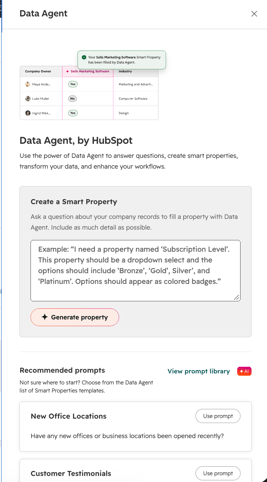
- In the panel, write your prompt, enter a Property label and pick a Field type.
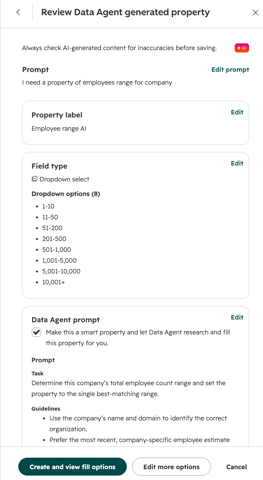
- Check Quick fill smart property if you want it to backfill existing records, then click Create property. You can also control the auto-fill schedule.
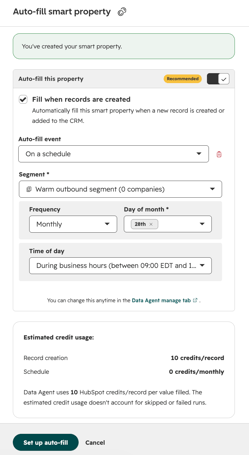
You can also create smart properties directly from a CRM index page; they still appear in the Data Agent's Manage tab afterward.
How do you use the Data Agent in workflows?
Three workflow actions live under the AI section when you add a step to a workflow.
Data Agent: Custom prompt

- Add the action, then write your prompt in the Message field. The action only sees what you explicitly add, so include the properties, personalization tokens, or associated-record data you want it to consider; it has no access to timeline activity or emails unless you add them.
- This action's model is not connected to the internet, and prompts are capped at 3,000 characters.
- Optionally define Action outputs (like an enumeration of allowed values) so the response fits neatly into your next action.
- Use Test action to preview the response and success/failure state on a real record before turning it on. If your account doesn't have enough credits, the action fails and returns a null value.
Data Agent: Research

- Add the action, enter what you'd like to know, choose where the data comes from: Property data or the record's five most recent Call transcripts, and pick an output type: String, Number, or Boolean.
Data Agent: Fill Smart Property

- Add the action, select the object to run it on, choose a fill option, pick the existing smart property to fill, then save.
Once any of these actions runs, you can send its Response into a branch to route records differently, into an Edit record action to update a property, or, on Marketing Hub Enterprise, into a custom token for a personalized automated email (up to 1,000 tokens per account).
What's the Data Agent's source of truth?
It depends on which feature you're using. Smart properties and the Research workflow action can pull from web research, your company website, existing property data, or recent call transcripts, depending on what you select when you set them up.

The Custom prompt action is the one exception worth flagging: its model isn't connected to the internet, and it only sees the properties, tokens, and text you explicitly add to the prompt, nothing else on the record. That means answer quality tracks directly to what you feed it. A vague or incomplete prompt won't get filled in by the AI guessing; it will just produce a shallow or wrong answer because it was never given the missing context.
How much does the Data Agent cost?
The Data Agent is available on Marketing Hub, Sales Hub, Service Hub, Data Hub, and Content Hub Starter, Professional, or Enterprise, and on Smart CRM or Revenue Hub Professional or Enterprise.
It runs on HubSpot Credits. For smart properties, credits are consumed each time the agent generates a response to one prompt for one record. For the Custom prompt workflow action specifically, running out of credits doesn't charge you for a partial result: the action simply fails and returns a null value.
How can your team use the Data Agent?
|
Role
|
Use case
|
Benefit
|
|
RevOps
|
Build a smart property that flags high-growth companies from web research
|
Prioritize the right accounts automatically
|
|
Sales managers
|
Use a smart column in Data Studio to recommend next steps per lead
|
Turn raw data into a daily call list
|
|
Sales reps
|
Use Custom prompt to draft outreach emails based on record data
|
Skip the blank-page problem before outreach
|
|
RevOps / admins
|
Route records into branches based on Research or Custom prompt output
|
Automate qualification instead of manual review
|
The Data Agent is really three tools in one, and the value comes from matching the right one to the job: smart properties for ongoing enrichment, workflow actions for point-in-time decisions inside automations, and smart columns for one-off analysis in a dataset. Start with a single smart property tied to a real gap in your CRM data, test workflow actions on a handful of records before turning them on for everyone, and keep prompts specific about exactly what data to use and what format you expect back.
How Thalox Helps You Get the Data Agent Set Up
Getting the Data Agent to improve your CRM data takes more than flipping a toggle. Thalox's certified HubSpot consultants help you decide which data gaps are worth a smart property versus a workflow action, write prompts that specify their data sources and expected format precisely (especially for the Custom prompt action, which won't infer missing context on its own), and set up testing and branches so a bad output gets caught before it reaches a live record.
Not sure where to start? Contact us, and one of our certified HubSpot consultants will review your CRM setup and help you configure it correctly from day one.
