HubSpot

How to sync WhatsApp to HubSpot

Learn what you need to sync WhatsApp to HubSpot, how the setup process works, and get our free step-by-step slide guide.


Syncing WhatsApp to HubSpot requires a WhatsApp Business account, a HubSpot Marketing Hub or Service Hub Professional or Enterprise subscription, and admin access to a Meta Business Manager account. Once those are in place, the connection is made directly inside HubSpot's Inbox or Help Desk settings, where you link your verified WhatsApp Business account to a channel of your choice.
How to sync WhatsApp to HubSpot


WhatsApp has become the channel where your customers actually respond. But managing conversations outside your CRM means losing context, duplicating work, and slowing down response times.

The good news is that HubSpot offers a native integration that brings WhatsApp straight into your conversations Inbox, as long as you meet a few requirements from Meta and HubSpot first.

In this article, we'll quickly walk through what you need before getting started and how the connection process works. At the end, we're sharing a complete step-by-step guide in slide format for anyone ready to set things up without getting lost in the technical details.
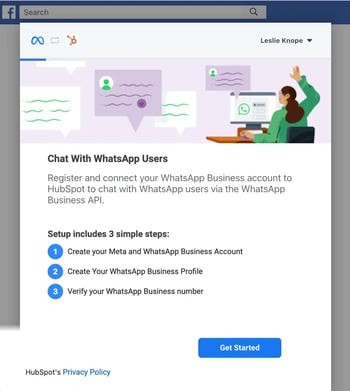
 

What do you need to sync WhatsApp to HubSpot?

get-started-with-whatsapp-connection

Before attempting to connect WhatsApp to HubSpot, make sure you have:

  • A WhatsApp Business account (a personal account won't work)

  • HubSpot Marketing Hub or Service Hub, Professional or Enterprise tier

  • Business details: legal company name, WhatsApp display name, website, and company email

  • Admin access to your company's Meta Business Manager account

  • An available phone number, able to receive voice calls, with no active IVR, and not already linked to another WhatsApp account or app

If you expect to send more than 50 business-initiated conversations per day, you'll also need to formally verify your Meta Business Manager account.


How does the WhatsApp-HubSpot sync process work?

Syncing WhatsApp to HubSpot happens in two stages: setting up a verified Meta Business account, then linking it inside HubSpot's Inbox or Help Desk.
 

Stage 1: How do you set up the Meta Business account?

  • Create and verify your Meta Business Manager account
  • Confirm your business details (legal name, website, email)
  • Get the account verified if you expect more than 50 business-initiated conversations per day

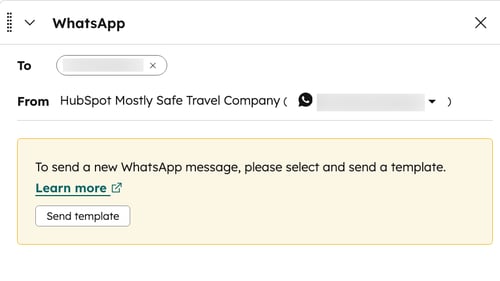
Stage 2: How do you connect inside HubSpot?

  • Choose where to connect: the conversations Inbox (best for sales and general support) or Help Desk (best for ticket-based support)
  • Link your verified WhatsApp Business account to that channel
  • Confirm the number and finish setup
  • Create a custom inbox view filtered by WhatsApp so your team can find these conversations quickly

What happens once WhatsApp is synced to HubSpot?

  1. Every message is logged automatically on the contact's CRM timeline
  2. Multiple team members can reply from the same shared number, no separate devices needed
  3. An incoming message automatically links to the matching contact when the sender's number matches their stored phone number
  4. Agents can switch channels mid-conversation, for example, moving from WhatsApp to email or a phone call without losing context
  5. Rich media is supported in both directions: images, videos, voice notes, documents, and even meeting links or knowledge base articles sent from HubSpot
  6. Response times and message volume are tracked directly in HubSpot's reporting

What are the limitations of the WhatsApp and HubSpot integration?

  • Previous conversation history does not import into HubSpot, only new messages sync
  • Messages sent outside the 24-hour response window require a pre-approved template from Meta. That window resets every time the contact replies, so an active back-and-forth conversation never expires


    WhatsApp and HubSpot integration
    Source: HubSpot


  • Since July 2025, WhatsApp billing is based on delivered template messages rather than 24-hour conversation windows — the free 24-hour window itself hasn't changed, only how templates sent outside it are charged: per message instead of a flat rate per conversation.
  • HubSpot also caps usage at 1,000 shared template messages per month across all connected accounts, resetting on the date your subscription was originally purchased
  • Some message types (reactions, polls, deleted messages) aren't supported and won't display properly in the inbox, and messages flagged as containing sensitive data get automatically hidden for compliance

Knowing these rules upfront helps avoid billing surprises and delays when going live.


Need a hand with the integration? Reach out to our team directly. You can schedule a call with one of our HubSpot specialists, we'll be happy to help you build strategies that drive real results!


Can I sync a personal WhatsApp account to HubSpot?

No. HubSpot only supports WhatsApp Business accounts. Personal accounts cannot be synced due to Meta's requirements.

Will my existing WhatsApp conversation history sync to HubSpot?

No. Only new messages received after the connection is set up will sync. Historical conversations are not imported.

What happens when the 24-hour WhatsApp session expires?

Once the session closes, you can only reopen it by sending a pre-approved template message. If the contact replies, a new 24-hour session starts and free-form messaging resumes.

What media types can I send through WhatsApp in HubSpot?

You can send images, videos, documents, meeting links, and knowledge base articles. Incoming messages also support voice notes, stickers, GIFs, and location sharing.

Can my whole team use the same WhatsApp number in HubSpot?

Yes, once your WhatsApp Business account is connected to HubSpot, the number is shared across your entire team. Multiple agents can view, reply to, and manage conversations from the same number. Incoming messages are automatically linked to the matching contact in the CRM, and conversations can be reassigned between team members at any time.


Related Articles

Get notified on new articles

Be the first to know about the latest data-driven marketing insights from Thalox.