HubSpot's Knowledge Base Agent (beta) drafts new help articles for you by scanning your closed support tickets for gaps, and it reviews your existing articles to suggest edits where content is unclear, outdated, or incomplete. It's built into Service Hub, so instead of a writer starting from a blank page, the agent hands them a draft grounded in the questions customers are actually asking.
It's available on Service Hub Professional or Enterprise, and generating each article costs 200 HubSpot Credits.
Table of Contents:
Check what our Senior HubSpot Consultant Lisa Freitas has to say about it:
Follow Lisa for weekly HubSpot Updates.
What is the Knowledge Base Agent (and why use it)?
HubSpot's Knowledge Base Agent (beta) drafts new help articles for you by scanning your closed support tickets for gaps, and it reviews your existing articles to suggest edits where content is unclear, outdated, or incomplete. It's built into Service Hub, so instead of a writer starting from a blank page, the agent hands them a draft grounded in the questions customers are actually asking.
The Knowledge Base Agent scans conversation data from your closed tickets, including chats, to spot topics your knowledge base doesn't cover yet, then drafts articles to fill those gaps. Separately, it analyzes your existing articles and flags edits where the content may be unclear, outdated, or incomplete.
What it is
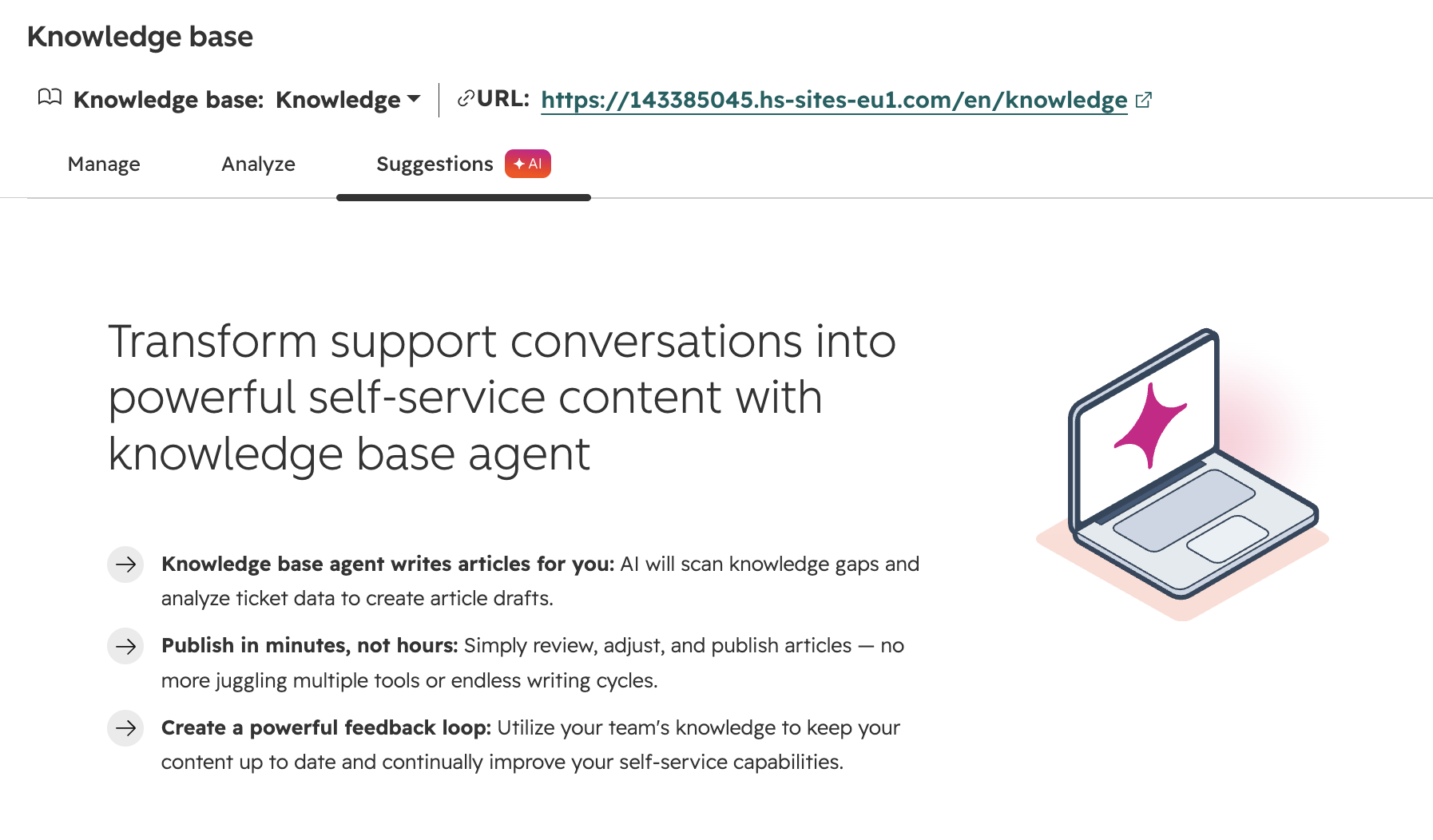
- A beta agent inside Service Hub's Knowledge Base tool, run from a Suggestions tab rather than a chat interface.
- Grounded in your own closed support tickets, so drafts reflect real customer questions instead of generic topics.
- Covers one knowledge base at a time, and generates drafts in that knowledge base's primary language.
- Splits its work into two suggestion types: Create (new article drafts) and Update (edits to existing articles).
Why use it
- Turns recurring ticket topics into documented answers instead of leaving reps to answer the same thing repeatedly.
- Surfaces outdated or unclear articles you might not think to re-check on your own.
- Cites its sources: you can see which tickets and conversations contributed to each drafted article before publishing.
- Fits into your existing review workflow, since every draft and edit is a suggestion you accept, edit, or dismiss, not an automatic publish.
How do you set up the Knowledge Base Agent?
Requirements:
- Your portal has at least 5 closed tickets.
- You have a knowledge base already set up.
- The Customer conversation data switch is toggled on in AI settings.
Once those are in place:
- Navigate to Service > Knowledge Base > Suggestions.
- Click the Knowledge base agent tab, then Create knowledge base agent.
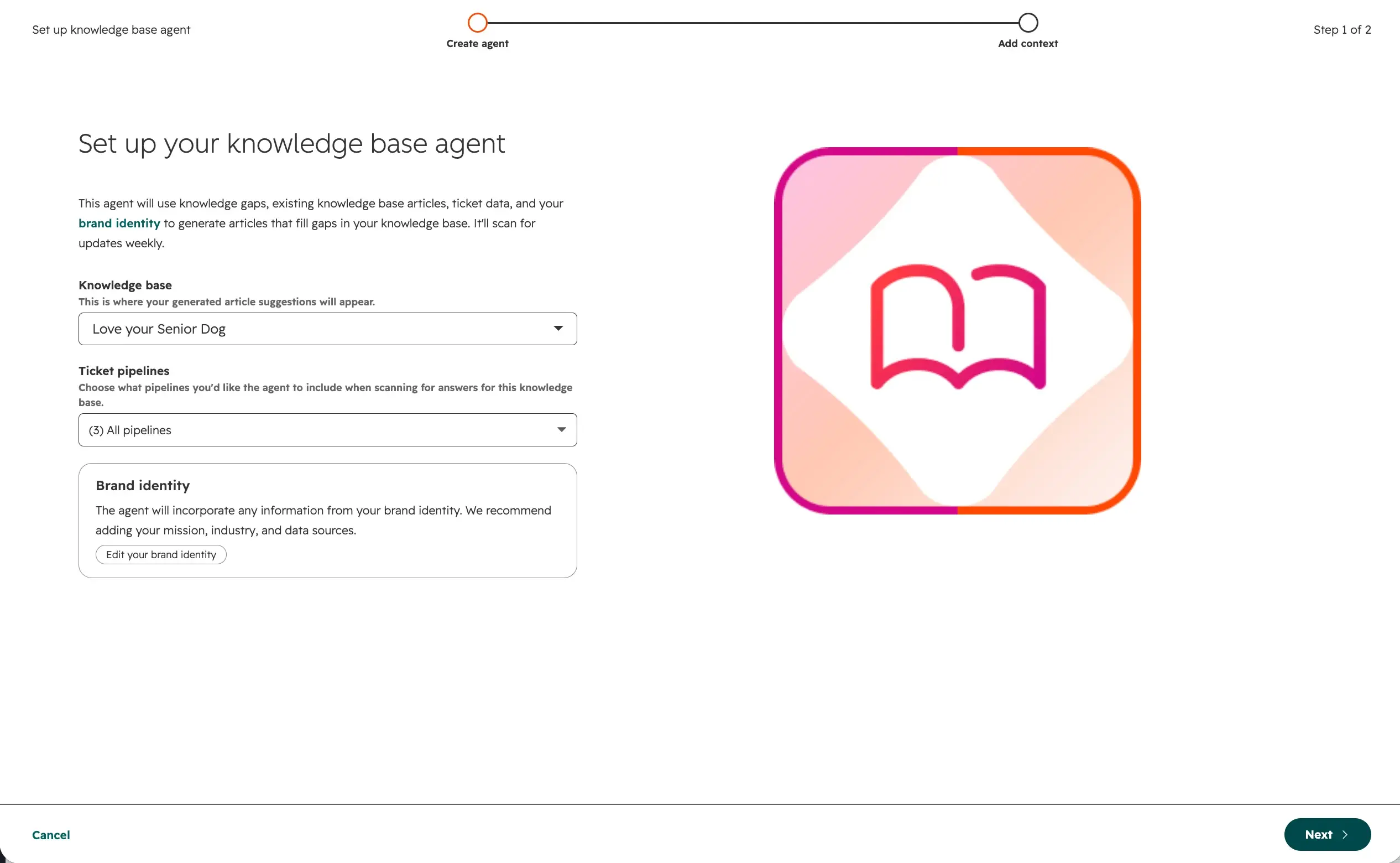
- Select a knowledge base and a ticket pipeline for the agent to pull tickets from. It will produce suggestions in the primary language set on that knowledge base.
- Click Finish.
How do you configure it after setup?
- Navigate to Settings > Content > Knowledge Base > Knowledge base agent (or click the gear icon from the Suggestions list).
- Use the toggle to enable or disable the agent. Only one knowledge base can have an active agent at a time; pausing an instance retains its existing suggestions.
- Under Advanced settings, set Target audience, Guardrails, and Additional instructions to guide its output.
- After saving, choose whether to clear existing suggestions. The new configuration applies within 30 minutes.
How do you review and act on suggestion cards?
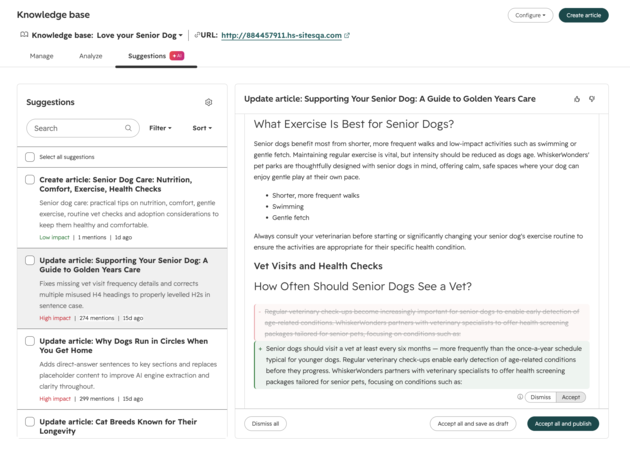
- Sort or filter by Impact, Card Type, Source Count, or Age.
- Click a suggestion card to open the associated article.
- Review the suggested change. Click Source conversations to see which tickets and knowledge gaps contributed to it.
- Toggle Accept or Dismiss for each suggestion item, then choose Accept all and publish, Accept all without publishing (saves a draft), or Dismiss all.
- View in editor to keep editing, or view the live published page.
- Give feedback on the AI-generated content directly in the editor.
What are the edit suggestion types in HubSpot's Knowledge Base agent?
| Types |
Description |
| Clarity |
Rewrites unclear phrasing to make articles easier to understand. |
| Incomplete |
Identifies missing information. |
| Stale data |
Flags outdated facts or references. |
| Branding |
Checks that articles match your company's name and messaging standards. |
| Answer Engine Optimization (AEO) |
Improves how your articles appear in AI-generated answers and search features. |
| Voice & formatting |
Rewrites content to match consistent tone, voice, and formatting. |
| Decay |
Detects articles whose traffic or engagement has declined significantly. |
What does the Knowledge Base Agent cost?
It's available on Service Hub Professional or Enterprise. Scanning tickets and surfacing suggestions doesn't cost anything extra, but generating each article draft consumes 200 HubSpot Credits. Reviewing and accepting suggested edits to existing articles doesn't consume credits.
How Thalox Helps You Get the Knowledge Base Agent Set Up
The agent is only as useful as the tickets and articles behind it. Thalox's certified HubSpot consultants help you check that your ticket data and pipelines are clean enough to produce good suggestions, review the agent's first batch of drafts and edits with you before anything gets published, and set filters so it's scanning the right knowledge base and pipelines from day one.
Not sure where to start? Contact Thalox and one of our certified HubSpot consultants will review your setup and help you configure it correctly from day one.
