

Skip to content
Logo Thalox

How to change roles or remove team members?

How to change roles or remove team members?- Collaboration

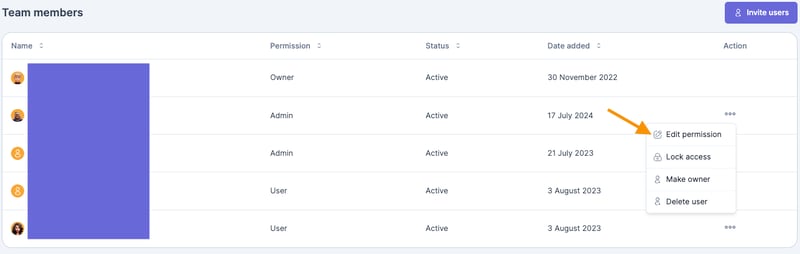
An Admin or an Owner can change the access level by navigating to “My Team” and changing the role of a certain team member. This can be particularly useful when roles within the team change or when different levels of access are required for certain tasks.
 
How to change roles or remove team members?
 
Click on "Edit permissions" and the following pop-up will appear.
 
How to change roles or remove team members?
 
Conversely, should the need arise to remove a team member's access entirely, the Admin or Owner can do so by following a similar process. By navigating to “My Team”, clicking the action menu next to the respective team member, and selecting “Delete user”, access can be promptly revoked. 
 
 This ensures that team access remains secure and tailored to the evolving needs of the organization.
 
 
Updated March 2026
What is the main difference between the thalox team member roles?

The main difference between the thalox team member roles is the level of responsibility and account control: Members operate the platform and run predictions, Admins manage users in addition to operational tasks, and the Owner has full account control, including billing access and ownership transfer.

What is thalox and what does it do?

thalox is a lead scoring and automatic contact segmentation tool that uses AI to predict the likelihood of contacts engaging with your email campaigns. It organizes your database into actionable segments directly within HubSpot. 

How do I change a team member’s role in thalox?
1. Navigate to “My Team” in your thalox account.
2. Locate the team member whose role you want to change.
3. Click “Edit permissions” next to their name.
4. Select the new role from the available options (Member, Admin, or Owner).
5. Save your changes, the new role will take effect immediately.